

LIV Compare: Leo's Image & Video Comparison Tool. As the name suggests, it's an app I built mostly for myself, but it proved more useful than I expected. So, I'm sharing it with everyone for free.
Load up to 4 images or videos at once. Compare grades, edits, codecs, upscaling algorithms, or anything else you want to compare with synchronized playback. Step frame by frame, zoom in and out, switch between views, and export screenshots.
Loading and managing clips
Drop files onto the window or press CmdO. It supports a range of common image and video formats.
You can mix videos and images in the same session. Images load as static frames.
The layout adapts automatically as you load files. One file fills the screen. Two to three go side-by-side. Four form a 2×2 grid.
It uses the longest clip as the master clock and keeps everything else locked to it. Shorter clips hold their last frame when they reach the end.
You can drag a slot button onto another to swap their positions or click on the X on a slot to close it. If all 4 slots are full, loading a new file prompts you to pick which one to replace. Duplicates are skipped automatically.
Zoom and pan
Pinch to zoom on a trackpad, or use the scroll wheel. The zoom always anchors to wherever your cursor is pointing, so you're not constantly re-centering. Press Z or click the zoom indicator in the toolbar to reset.
When you're zoomed in, there are two modes. Bilinear smooths things out. Nearest Neighbor shows raw pixels with no blending.
A/B mode and grid mode
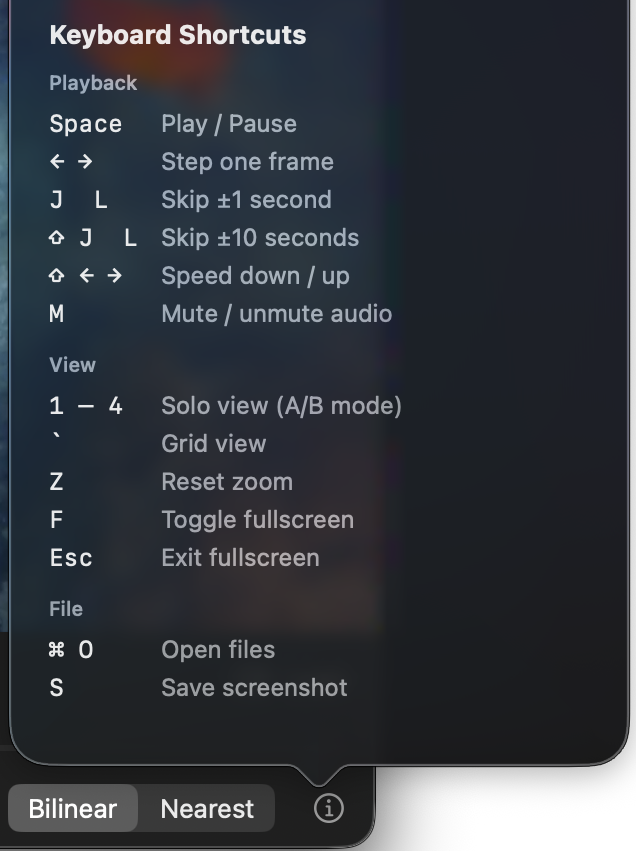
Grid mode is for seeing everything at once. A/B mode is for when you want to focus on one panel at a time and switch back and forth to spot differences. Press 1, 2, 3, or 4, or click on the slots to solo that clip, and press ` to jump back to the grid. Press F to go fullscreen, Escape to exit.
Playback controls
Space to play/pause. ←→ step one frame at a time. J and L jump back or forward in small increments, and ShiftJ / ShiftL jump farther. Shift← / Shift→ step through playback speeds (0.25×, 0.5×, 0.75×, 1×, up to 2×), or pick one from the toolbar menu. The scrub bar lets you jump anywhere in the timeline.
Audio
All tracks are muted when you first load them. You can unmute any clip individually with the speaker button in its overlay. M mutes everything if anything is playing; if all are already muted, it unmutes the first clip.
Screenshot export
Press S or click the camera button and you get a PNG of exactly what's on screen without the UI controls.
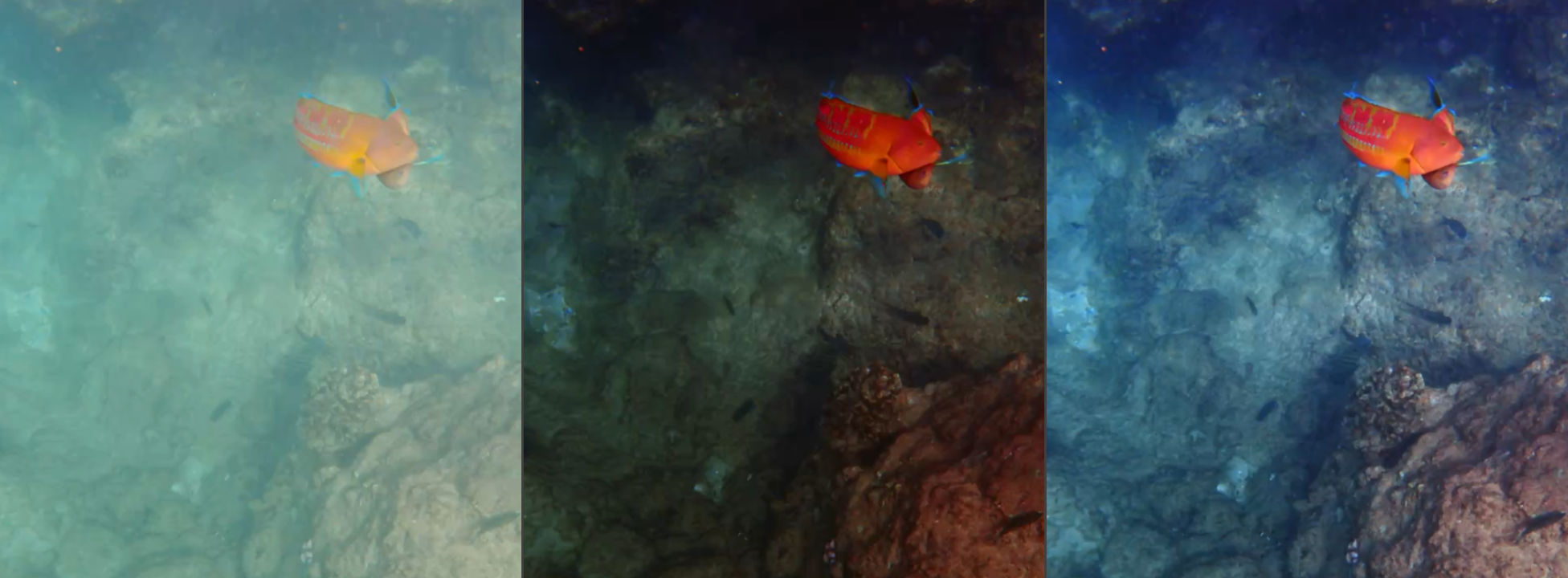
comparison_2026-03-14_09-39-19.png.
Keyboard shortcuts
Almost everything has a shortcut. There's a cheat sheet in the app when you click the info button in the toolbar.
Installation
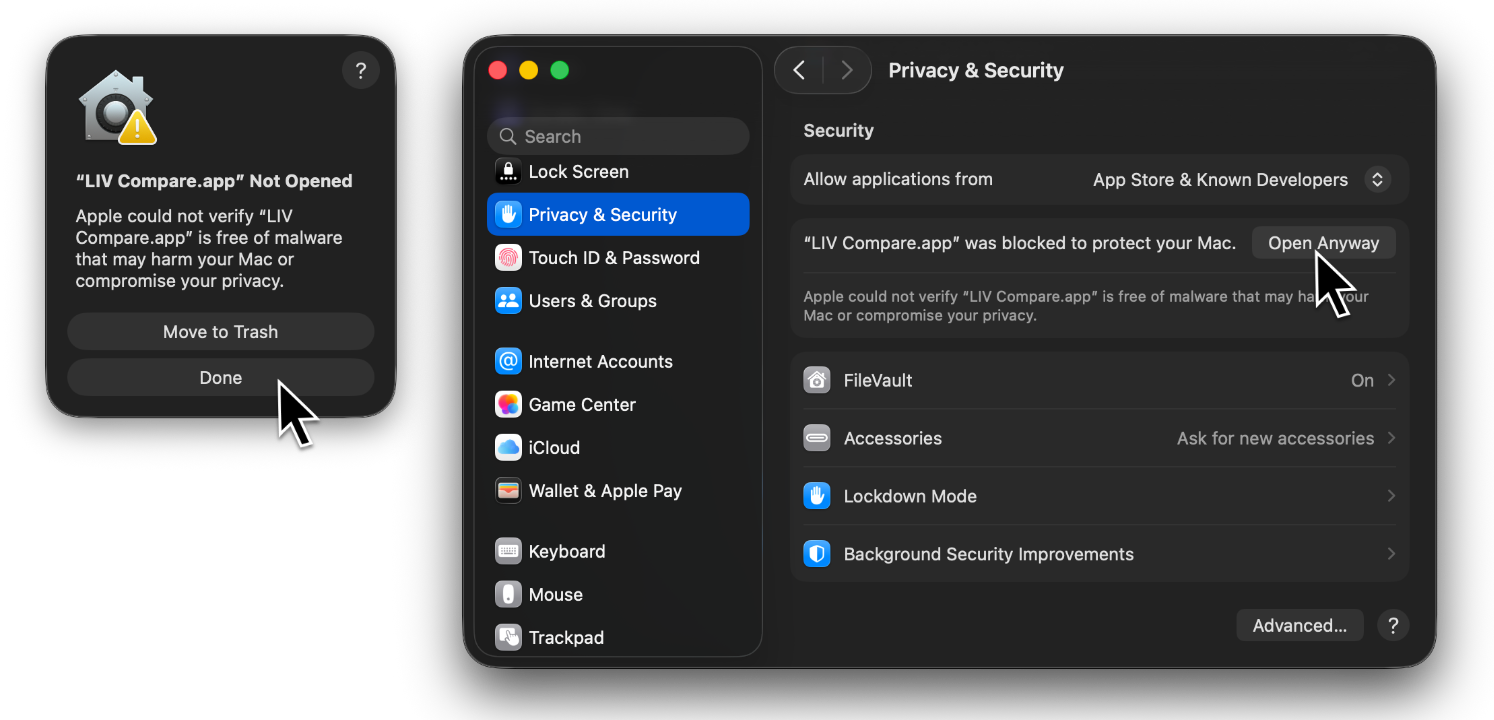
Because this isn't distributed through the App Store (I'm too cheap to pay the $99 fee), macOS will block it the first time. Here's how to get past it:
System Settings → Privacy & Security, scroll down, click Open Anyway.
You only have to do this once. After that it opens normally.
LIV Compare is free to use for any purpose, including commercial. It is provided as-is with no warranty. Redistribution of the app itself is not permitted.
That's it! I hope you find it useful. If you run into any issues or have suggestions, open an issue on GitHub.